

bot-ui Studio
Map your Telegram bot, test its buttons and edit its messages. Try Pulloa’s 19 screens in your browser. For your own bot, run Studio locally on your computer.
Pulloa’s live widgets
Each card runs the bot’s real widget HTML. Tap its buttons: a simulated bot answers after a moment, and the widget updates as it would in Telegram.
Loading widget…
Preview options
Loading widget…
Preview options
Loading widget…
Preview options
Loading widget…
Preview options
Loading widget…
Preview options
Loading widget…
Preview options

Pulloa live demo
Use the editor and simulator with a coffee pickup bot. Drafts stay in your browser.
Loading the Studio workspace…
Run Studio locally
Work on your own bot at 127.0.0.1. Studio serves one project from your computer, and Save writes changes to that project’s bot-ui/ folder.
Build the Studio client
Run this once from a Telegram Bot UI checkout that contains the studio/ directory.
Install dependencies and build
npm --prefix studio/web ci
npm --prefix studio/web run buildChoose your project
Replace ../my-bot with the path to your bot’s repository. Keep running the commands from the Studio checkout.
Use your existing bot-ui/ folder in the launch command below.
Open Studio in your browser
Start Studio for this project
python3 studio/bot-ui.py studio --project ../my-bot/bot-ui --openStudio opens the local address it prints. Keep the terminal open while you work, and press Ctrl+C to stop it.
From bot files to the Studio map
The local Studio and your coding agent share the bot-ui/ folder in your repository.

Open your bot project
Open your bot-ui/ folder in local Studio. For an existing aiogram bot, you can import a project from its code first.
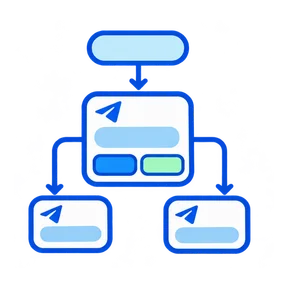
Studio builds the map
Each screen becomes a chat card. Arrows show where the buttons lead, including both branches of a rule.

Test a route in the simulator
Start the simulator and tap through the flow as a user. See the messages and transitions that each action triggers.
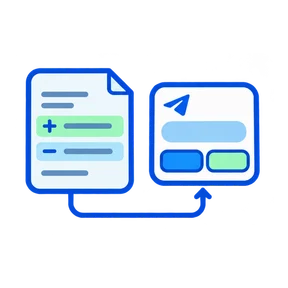
Review changes on the map
Leave a request on a screen and copy the task for your agent from Changes. Review the edits in Git and check the updated flow in Studio.